# 현재 IP 확인하기

{% hint style="danger" %}
인터넷을 연결하는 방법은 <mark style="color:blue;">**LAN 케이블**</mark>**(유선)**&#xC744; 이용한 방법과 <mark style="color:blue;">**Wi-Fi**</mark>**(무선)**&#xC744; 이용하는 방법이 있습니다.\
\
안정적인 네트워크 환경을 위해 <mark style="color:red;">**LAN 환경을 권장**</mark>드립니다.&#x20;
{% endhint %}

{% hint style="success" %}
**고정 IP 설정**에 필요한 게이트웨이, 서브넷 마스크, DNS 정보를 함께 확인할 수 있습니다.
{% endhint %}

{% tabs %}
{% tab title="LAN (Ehternet) 이용 시" %}

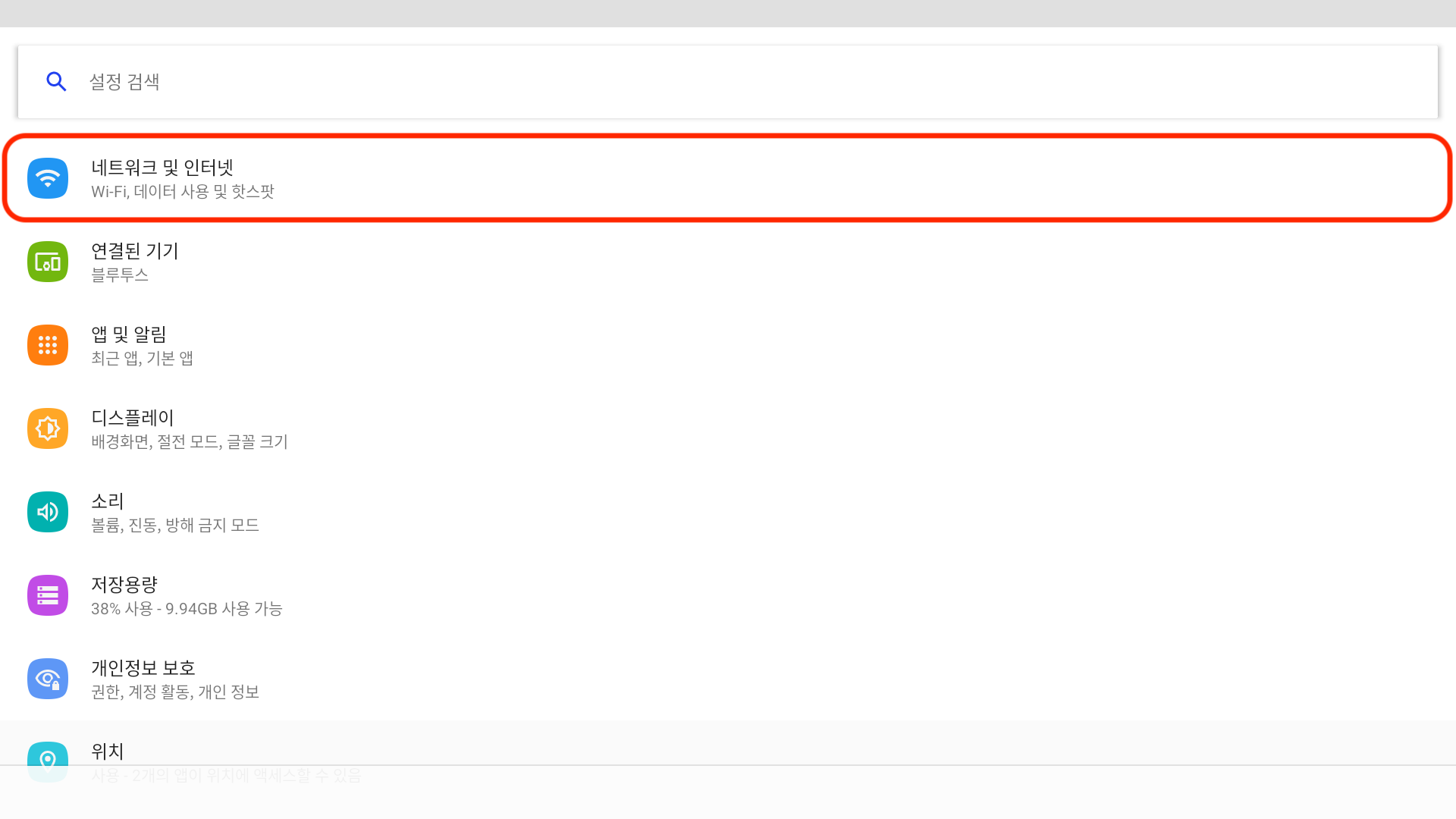
1. **설정 -> 네트워크 및 인터넷**으로 이동해주세요.<br>

   <figure><img src="/files/dTpc3VZdDgojM563ED7A" alt=""><figcaption></figcaption></figure>
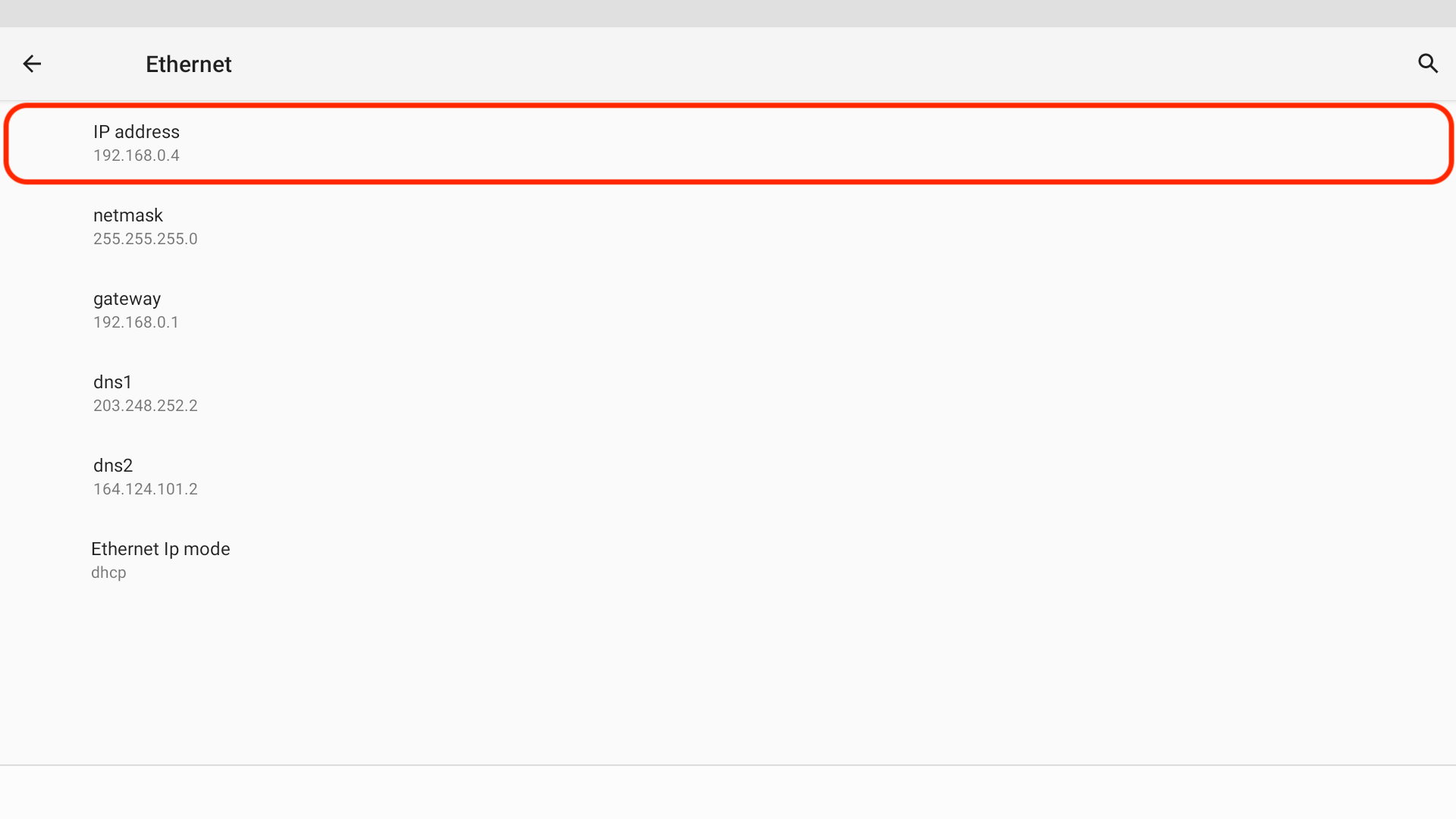
2. **Ehternet 탭**을 눌러주세요.<br>

   <figure><img src="/files/GQ9GfnJS0dCGcj7lJAsp" alt=""><figcaption></figcaption></figure>
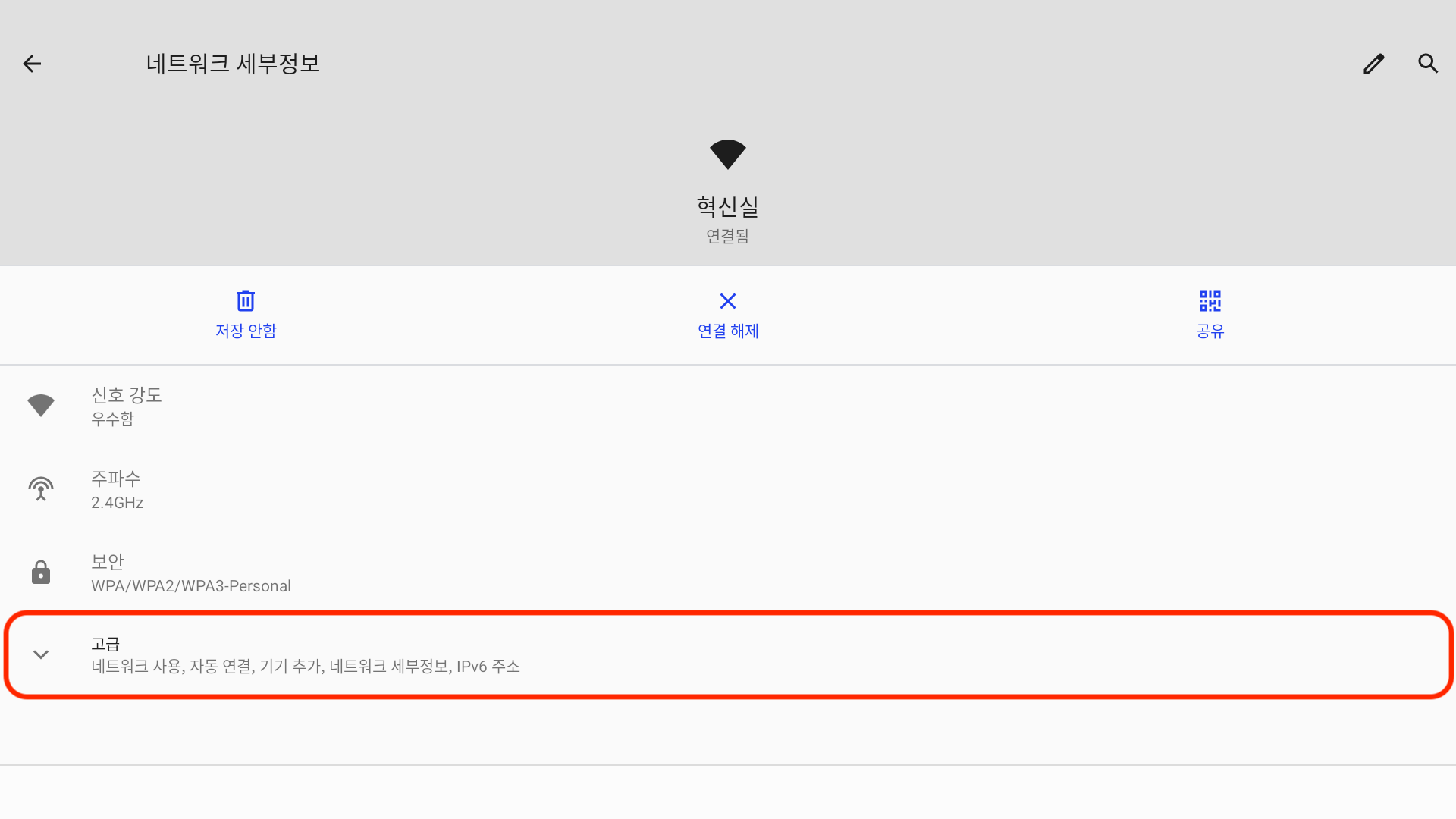
3. **IP address**를 확인해주세요.<br>

   <figure><img src="/files/hV4LczKUJakt3gs8RbQX" alt=""><figcaption></figcaption></figure>

{% endtab %}

{% tab title="Wi-Fi 이용 시" %}

1. **설정 -> 네트워크 및 인터넷**으로 이동해주세요.<br>

   <figure><img src="/files/dTpc3VZdDgojM563ED7A" alt=""><figcaption></figcaption></figure>
2. **Wi-Fi 탭**을 눌러주세요.<br>

   <figure><img src="/files/A2qH9xgJeGqtcDLPBo5G" alt=""><figcaption></figcaption></figure>
3. 현재 연결 된 **네트워크**를 눌러주세요.<br>

   <figure><img src="/files/5w0LbnnqkS4U1zQPGesz" alt=""><figcaption></figcaption></figure>
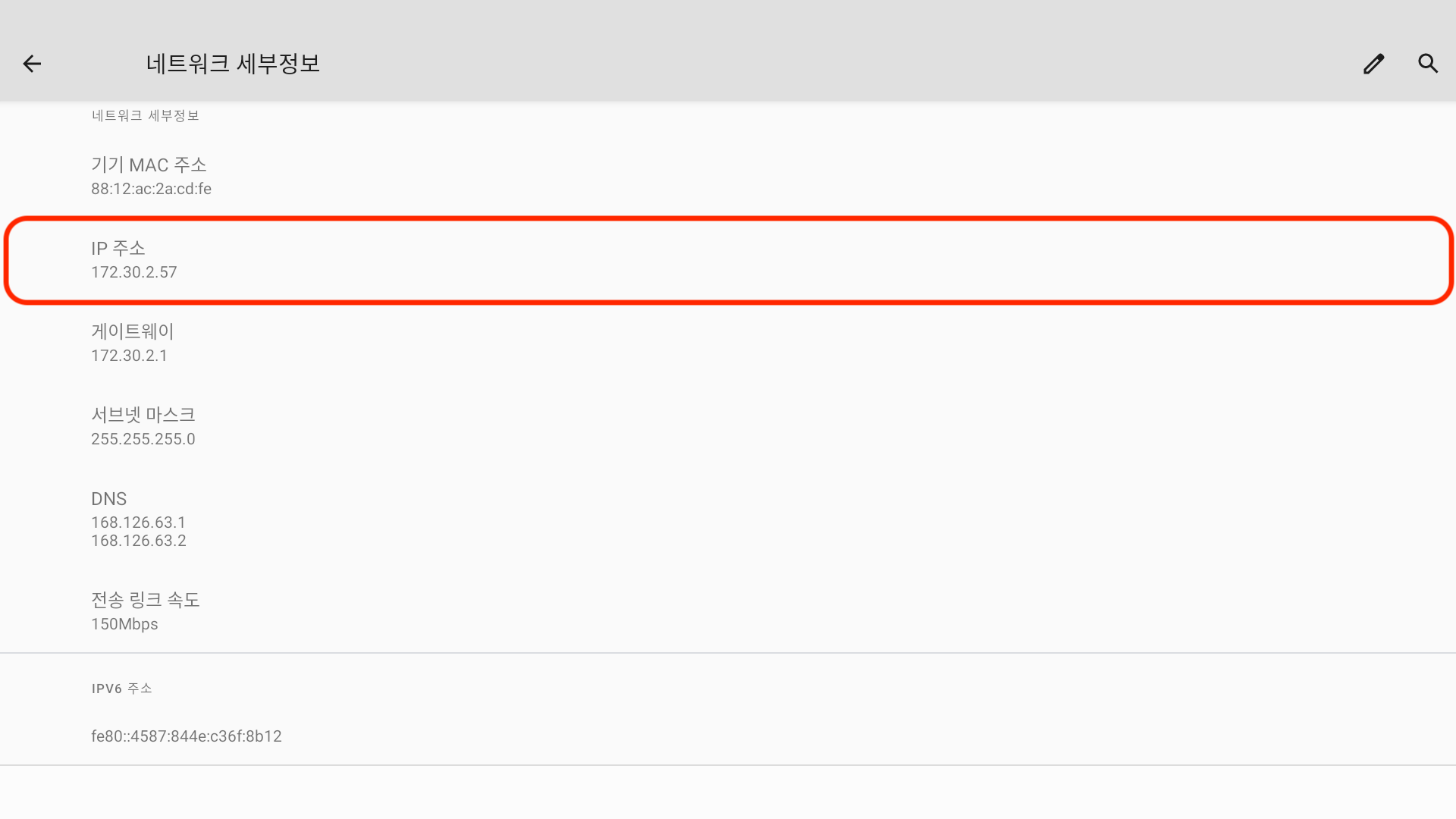
4. **고급 탭**을 눌러주세요.<br>

   <figure><img src="/files/D8hyZSrP4KWQyY90ud7n" alt=""><figcaption></figcaption></figure>
5. 아래로 스크롤하여 **IP 주소**를 확인해주세요.<br>

   <figure><img src="/files/S5TDx0oQ6FINdIAudhaT" alt=""><figcaption></figcaption></figure>

{% endtab %}
{% endtabs %}


---

# Agent Instructions: Querying This Documentation

If you need additional information that is not directly available in this page, you can query the documentation dynamically by asking a question.

Perform an HTTP GET request on the current page URL with the `ask` query parameter:

```
GET https://pluspos.gitbook.io/android-pos-manual/android-pos/setup/current-ip.md?ask=<question>
```

The question should be specific, self-contained, and written in natural language.
The response will contain a direct answer to the question and relevant excerpts and sources from the documentation.

Use this mechanism when the answer is not explicitly present in the current page, you need clarification or additional context, or you want to retrieve related documentation sections.